
Security
How to Securely Store Passwords & Sensitive Data on Your Phone (Without a Password Manager)
Learn how to store passwords securely on phone without a password manager. Discover why encrypted notes apps beat plain text and how E2E encryption keeps your data safe.
Read This For
- Your Phone's Default Notes App Is a Security Disaster
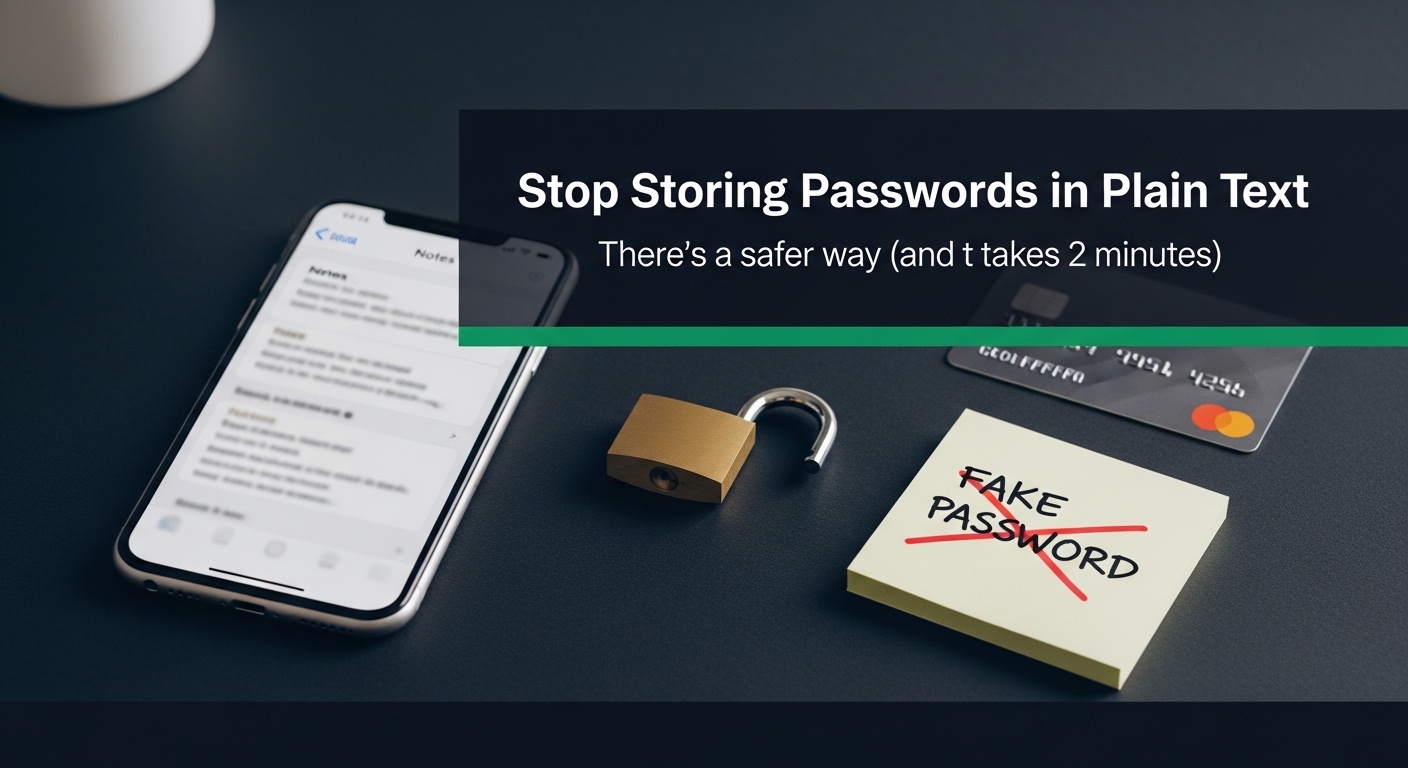
If you are trying to figure out how to store passwords securely on phone without adding a bunch of friction, start by dropping one dangerous assumption: your default notes app is not a vault.
- What Most People Get Wrong About Saving Passwords on a Phone
The usual advice is to tell everyone to use a full password manager and treat every other option as irresponsible. That sounds clean in theory and falls apart in practice.
- End-to-End Encryption Is the Only Part That Actually Matters
If you want to know how to store passwords securely on phone, focus on one thing first: end-to-end encryption. That means your note is encrypted on your device before it ever reaches a server, and only your password can unlock it.
Section 1
Your Phone's Default Notes App Is a Security Disaster
If you are trying to figure out how to store passwords securely on phone without adding a bunch of friction, start by dropping one dangerous assumption: your default notes app is not a vault.
A lot of people still save bank PINs, Wi-Fi passwords, card details, recovery codes, and login credentials inside plain text notes because it feels fast. The problem is that speed without encryption is just exposure with better UX.
The risk is usually boring rather than dramatic. Someone borrows your unlocked phone for a minute. A cloud backup gets exposed. A weak device PIN gets cracked. A malicious app reads from unprotected local storage. None of that requires movie-level hacking.
Once sensitive data is sitting in a readable note, the security failure has already happened. Everything after that is just hoping nobody looks in the obvious place.
Section 2
What Most People Get Wrong About Saving Passwords on a Phone
The usual advice is to tell everyone to use a full password manager and treat every other option as irresponsible. That sounds clean in theory and falls apart in practice.
Password managers are excellent tools, but a lot of people do not need browser extensions, autofill engines, sharing vaults, and subscription plans just to protect a few dozen sensitive items. They need a workflow simple enough that they will actually keep using it.
That is why a practical password manager alternative can be the better answer for some users. If the secure option feels heavy and the insecure option is one tap away, people slide back to the insecure one almost immediately.
The better question is not whether a tool has the most features. It is whether it makes secure storage the default behavior for normal people on a normal day.
Related Links
Section 3
End-to-End Encryption Is the Only Part That Actually Matters
If you want to know how to store passwords securely on phone, focus on one thing first: end-to-end encryption. That means your note is encrypted on your device before it ever reaches a server, and only your password can unlock it.
With real end-to-end encryption, the service provider cannot read your note contents. A server breach exposes unreadable ciphertext instead of plain text secrets. That is the difference between actual protection and a cosmetic lock screen.
AES-256 is the standard most people should look for. It is widely used, battle-tested, and strong enough that the weak point is almost never the cipher itself. The weak points are bad passwords, bad implementation, and apps that quietly keep the keys on their own side.
A simple reality check helps here: if a company can reset your encrypted note password and restore access to your content, they probably hold too much power over the data. Zero-knowledge systems are less forgiving, but that is also why they are credible.
Section 4
What Belongs in an Encrypted Notes App
People tend to think only about passwords, but the real list is broader: card numbers, bank PINs, security questions, software license keys, private IDs, crypto recovery material, and two-factor authentication backup codes.
This is also where a secure note-taking app with encryption becomes useful beyond credentials. Sometimes you need to store client access tokens, internal admin links, or a private reference note that should never sit in plain text.
The rule is straightforward. If a stranger reading the note would create financial risk, account takeover risk, reputational risk, or business risk, it belongs in an encrypted notes app instead of a standard notes app.
Privacy is not limited to dramatic secrets. It includes ordinary information that becomes dangerous when it is exposed out of context.
Section 5
How to Store Passwords Securely on Phone: A Practical Walkthrough
A practical setup is simpler than most people expect. Use a browser-based encrypted notes app, create a strong master password, and move your sensitive entries into one protected note or a small set of protected notes organized by purpose.
ProNotepad fits this workflow well because it gives you a browser-based encrypted notes app with AES-256 protection and a straightforward writing interface instead of a complicated vault UI. The encryption happens before protected note content is stored, which keeps the workflow simple without dropping the security model.
This matters if you are wondering where to save credit card info safely or where to keep backup codes without installing more software. The point is not to collect features. The point is to stop storing sensitive material in readable form.
A good setup also depends on behavior: use a strong unique password, keep your device lock enabled, and separate sensitive notes from regular everyday notes so the protected workspace stays intentional.
Related Links
Section 6
How This Compares With Password Managers and Default Notes Apps
Dedicated password managers are still the best app to store sensitive information if you want autofill, password generation, multi-device vault management, and a purpose-built credentials workflow. If that is your use case, use one.
But default notes apps are weak substitutes because they usually prioritize convenience over true encryption defaults. A PIN on a note is not the same thing as protecting the underlying data with end-to-end encryption.
An encrypted notes app sits in the middle. It is a strong option when you need real privacy without the overhead of a full credential management system. That makes it a credible password manager alternative for people whose main goal is secure storage, not feature depth.
If the choice is between a perfect tool you will never maintain and a simpler encrypted workflow you will actually use every day, the second option usually produces the better security outcome.
Section 7
Simplicity Wins if It Gets You to Act
A lot of personal security advice collapses because it assumes people will adopt maximum-complexity setups and maintain them forever. Most will not.
The practical win is to choose a secure workflow with low enough friction that you stop procrastinating. That is why how to store passwords securely on phone is partly a usability question, not just a cryptography question.
If you are still keeping credentials in plain text because a dedicated vault felt like too much overhead, the immediate upgrade is obvious: move them into an encrypted notes app and use a strong password you will not forget.
Better security usually starts with one realistic change made today, not an idealized system you keep postponing.
Questions Readers Usually Have
FAQ: How to Store Passwords Securely on Phone
Is it safe to store passwords in a notes app on my phone?
Only if the note app uses real end-to-end encryption and protects the underlying stored data rather than just adding a superficial lock screen.
What is better for simple secure storage: a password manager or an encrypted notes app?
A password manager is better for advanced credential workflows, while an encrypted notes app is often better for users who want lower friction and still need strong protection.
Where should I save credit card numbers or backup codes on my phone?
Store them in a protected note inside an encrypted notes app, not in a standard notes app, screenshots folder, chat thread, or draft email.
How do I know whether a notes app is truly private?
Check whether it uses end-to-end encryption, whether the provider can read your content, and whether password recovery would imply the company can decrypt your notes.
What is the fastest improvement I can make today?
Move sensitive information out of plain text notes, set a strong unique password for your encrypted notes, and keep your phone locked with a strong device passcode.
Next Reads
Continue with related note-taking and workflow guides.
Useful Tools
Jump from the article into focused ProNotepad workflows.
Try ProNotepad
Put the article into practice in a clean writing space without changing your workflow.
Open Online Editor